Archives: General

Can I use my TWIC for TSA Pre-Check? YES!

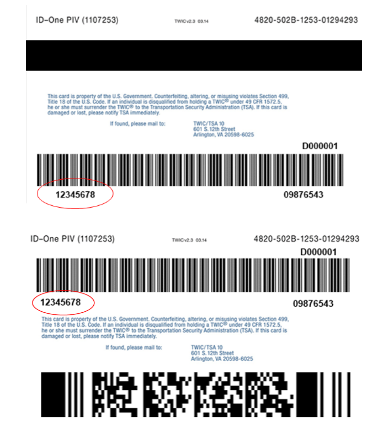
I feel like a lot of people ask this question and no one knows the actual answer. So, to those of you who hold and pay for a TWIC (Transportation Workers Identification Credential) card then this is for you. In order to use your TWIC for TSA Pre-check, you need to enter the first number on the back of your card known as the “CIN” (Credential Identification Number). Photos are below. Your CIN serves as your KTN (Known Traveler Number), so save your TWIC CIN to any frequent flyer profiles, employer booking systems, or online travel websites that you use.
E-mail Sub-addressing

If you’re like me, you receive hundreds of spam emails every day. I recently discovered a feature called email sub-addressing, which lets you create unique email variations without setting up multiple inboxes, aliases, or forwarders. This makes it ideal for filtering emails for organization and tracking which sites have leaked/sold your email! While sub-addressing doesn’t work on every website due to differing form validations, it generally works well across most platforms. The main thing to remember is to keep track of the specific sub-address you used when signing up, as you’ll need it later for account access!

Examples of sub-addressing using “[email protected]”:

johndoe+anything@gmail.com

What also may work but not for every email provider, is “dot ignoring”:

jo.hn.do.[email protected]
john.[email protected]

List of Cell Carrier Email to Text SMS

Email to SMS Gateways

T-Mobile β€“ [email protected]

Virgin Mobile β€“ [email protected]

AT&T β€“ [email protected]

Sprint β€“ [email protected]

Verizon β€“ [email protected]

Tracfone β€“ [email protected]

Ting β€“ [email protected]

Boost Mobile β€“ [email protected]

U.S. Cellular β€“ [email protected]

Metro PCS β€“ [email protected]

Finally an updated Storj Dashboard!

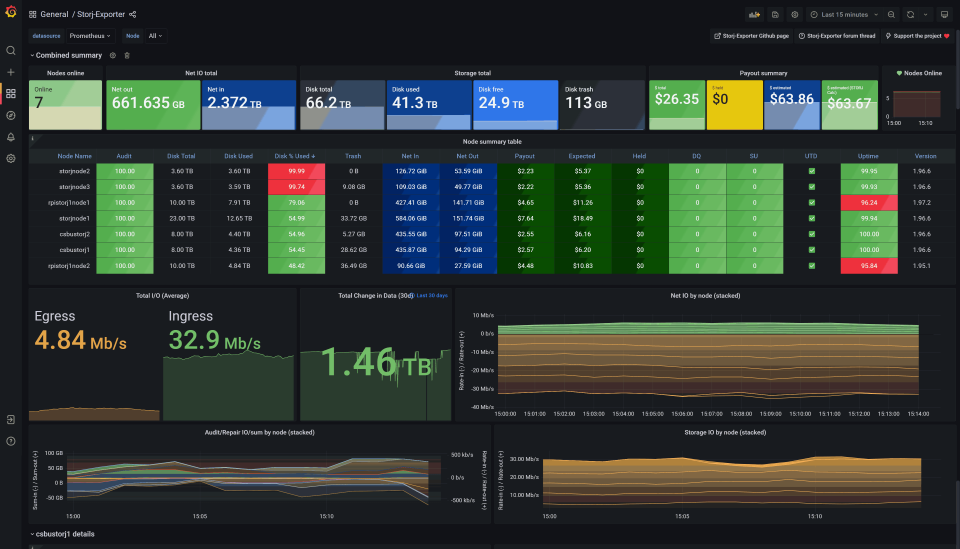
It’s been a long time coming and finally “TheChrisTech” has created a new StorJ Dashboard! Forked from the original anclrii, TheChrisTech’s version no longer requires outdated plugins! Download the latest dashboard here

Installing Windows 11 VM in ESXI 7.0

Found this fix for “This PC Can’t run Windows 11 — The PC doesn’t meet the minimum requirements to install this version of Windows”

vSphere 7 – ESXi 7.03 Lock down Mode

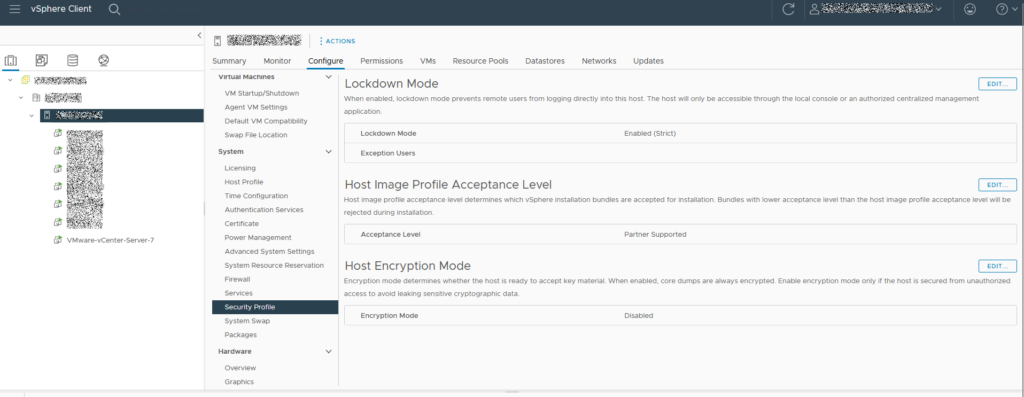
Login to vSphere, select your host > Configure. On the left menu scroll to System and select “Security Profile”.